What you bring
Provide the exact page you want someone to open. For the sample here, the destination is the public Lingo homepage.
 Lingo Chats
Give a new contact a direct way to reach your page, listing or event information. Create a QR code from the exact link you provide and bring it into the material you share.
Start with Lingo ↗See a worked example ↓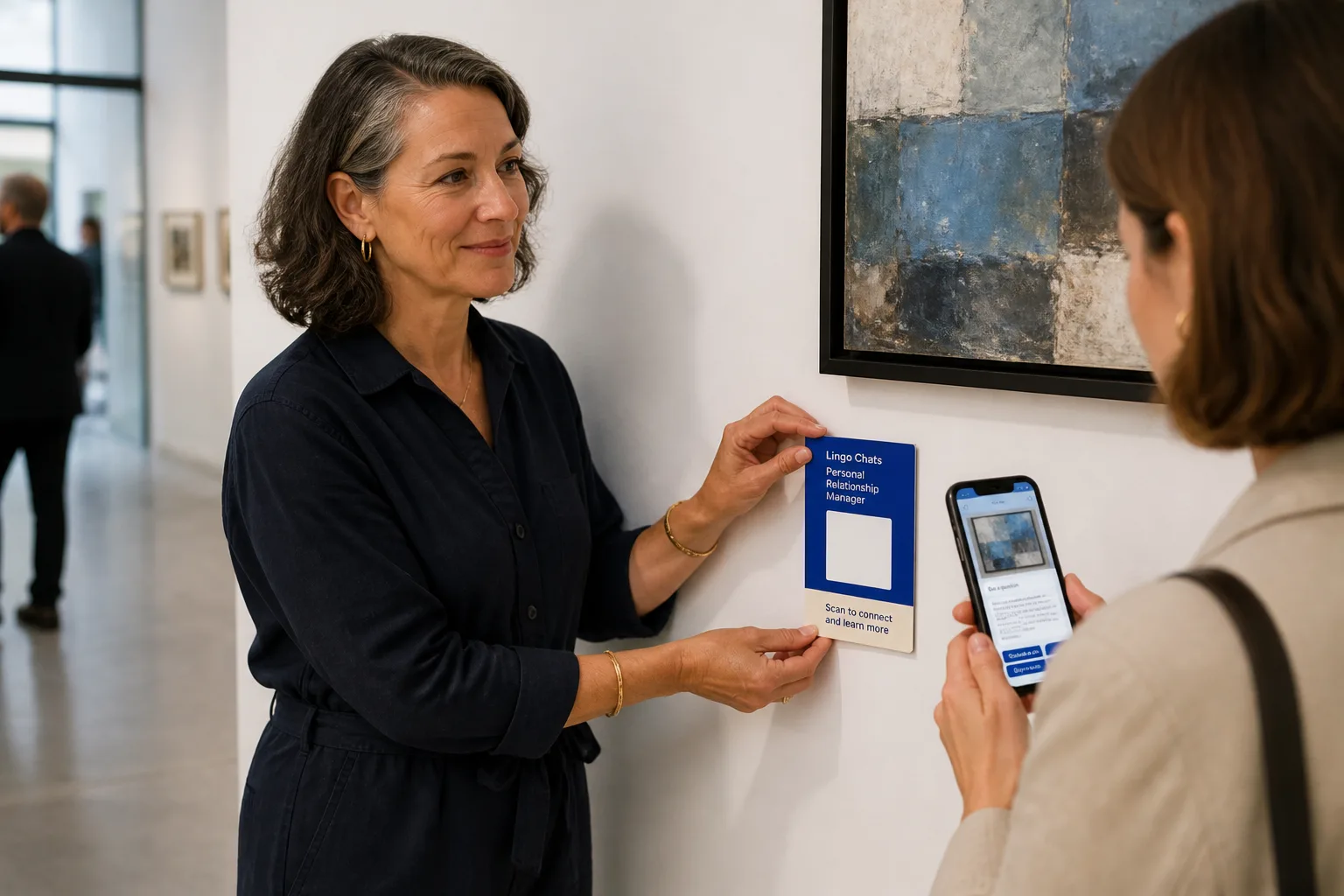
At a meeting, on a flyer or beside a display, the next step should be clear. A real QR gives the person a way to reach the destination you chose, without guessing which page to look for.
Provide the exact page you want someone to open. For the sample here, the destination is the public Lingo homepage.
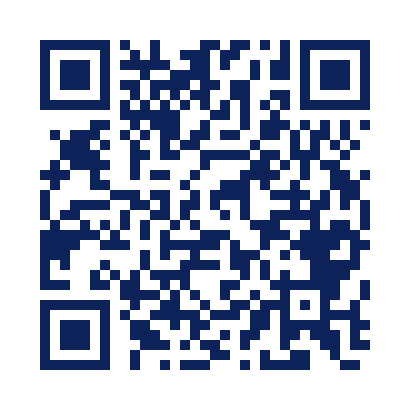
The code shown here is a real QR produced with Lingo’s QR renderer and checked against its intended URL. It is separate from the illustrative photograph, so no AI invented pattern is being passed off as a working code.
Scan it, verify the destination and download the code for your own review. Always test the completed artwork at its intended size before printing.
A listing, event page and personal introduction can need different destinations. Keep each code titled clearly, find the one you need later and use the exact saved asset in the visual you share.
People sharing listings · Event hosts and exhibitors · Anyone connecting paper to a page
✓Create a QR code for a URL or text
✓Give each code a useful title
✓Find codes you created earlier
✓Use the code as a flyer design input
✓Share the generated QR image
Provide the full destination link. Verify the destination and scan the finished artwork before printing.
Use the service from your Lingo account. For account access and any plan conditions, use the options shown in the app.
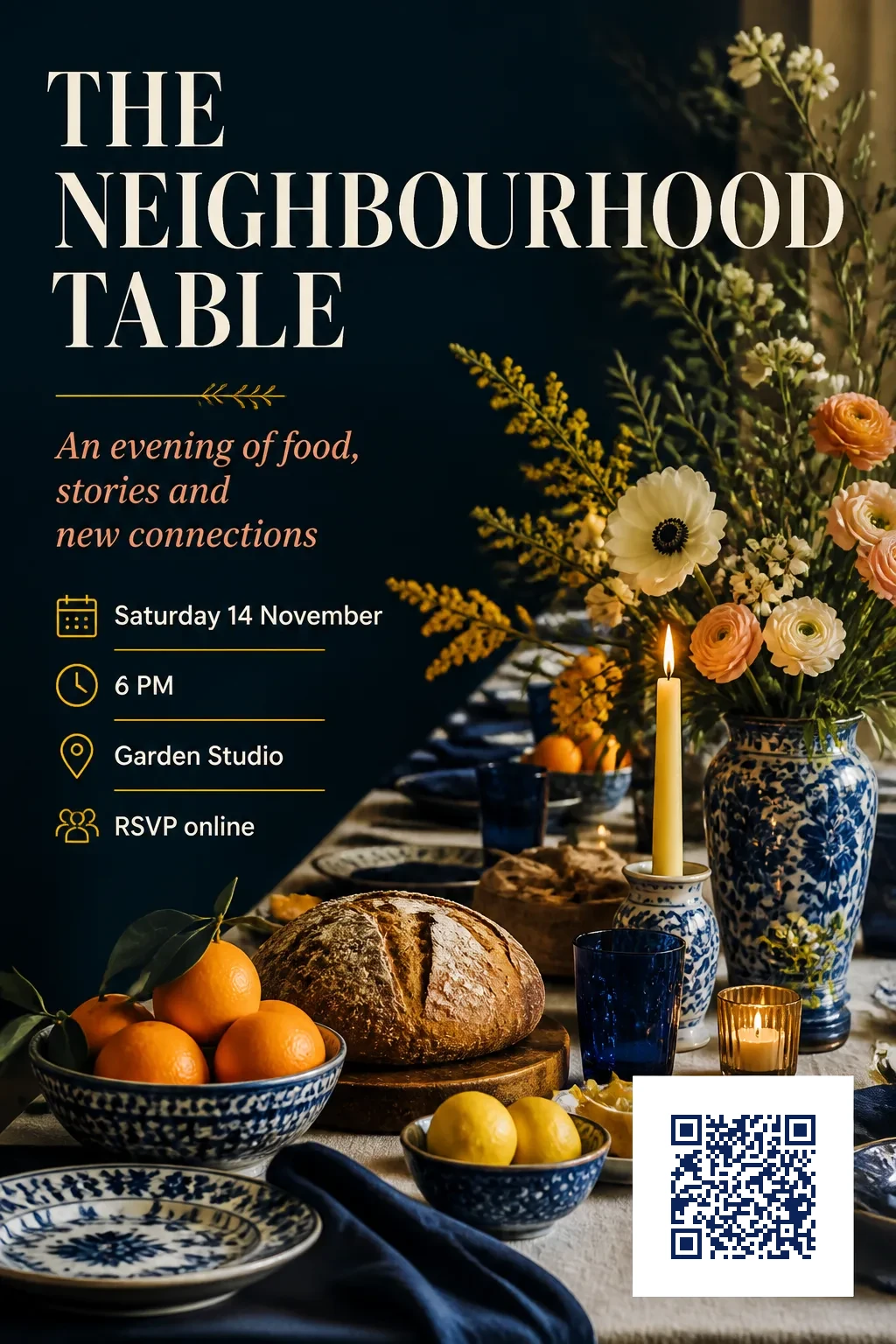
Open Lingo ↗The generated artwork reserved a clean space. The real QR was then placed there in the finished layout. Scan the code: this fictional demonstration opens the Lingo homepage, not a real RSVP form.
No. Creating the code creates an asset. Website publication is a separate action.
Provide the full destination link. Verify the destination and scan the finished artwork before printing.
No. The interface examples use fictional sample data. Generated photographs are illustrative. The downloadable samples are provided so you can inspect the format and result.
Start with one person, one promise or one thing you want to move forward.